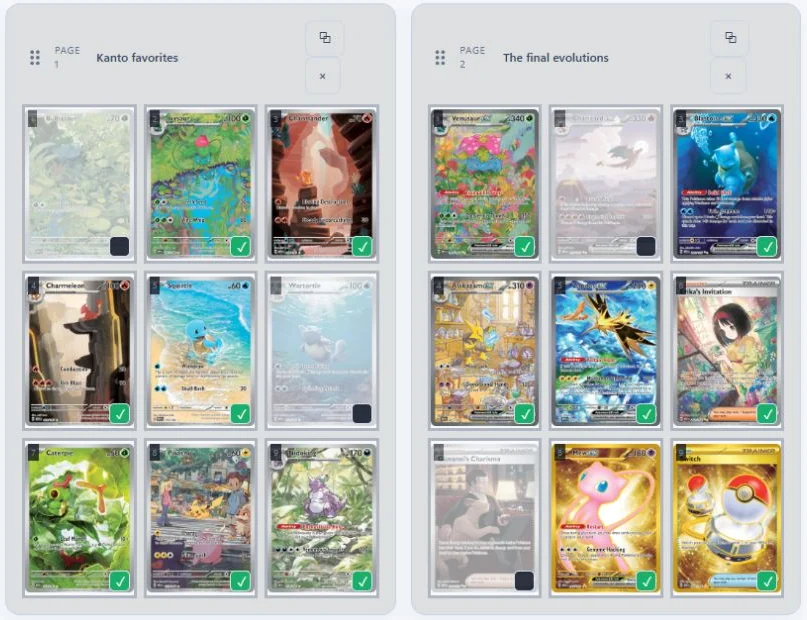
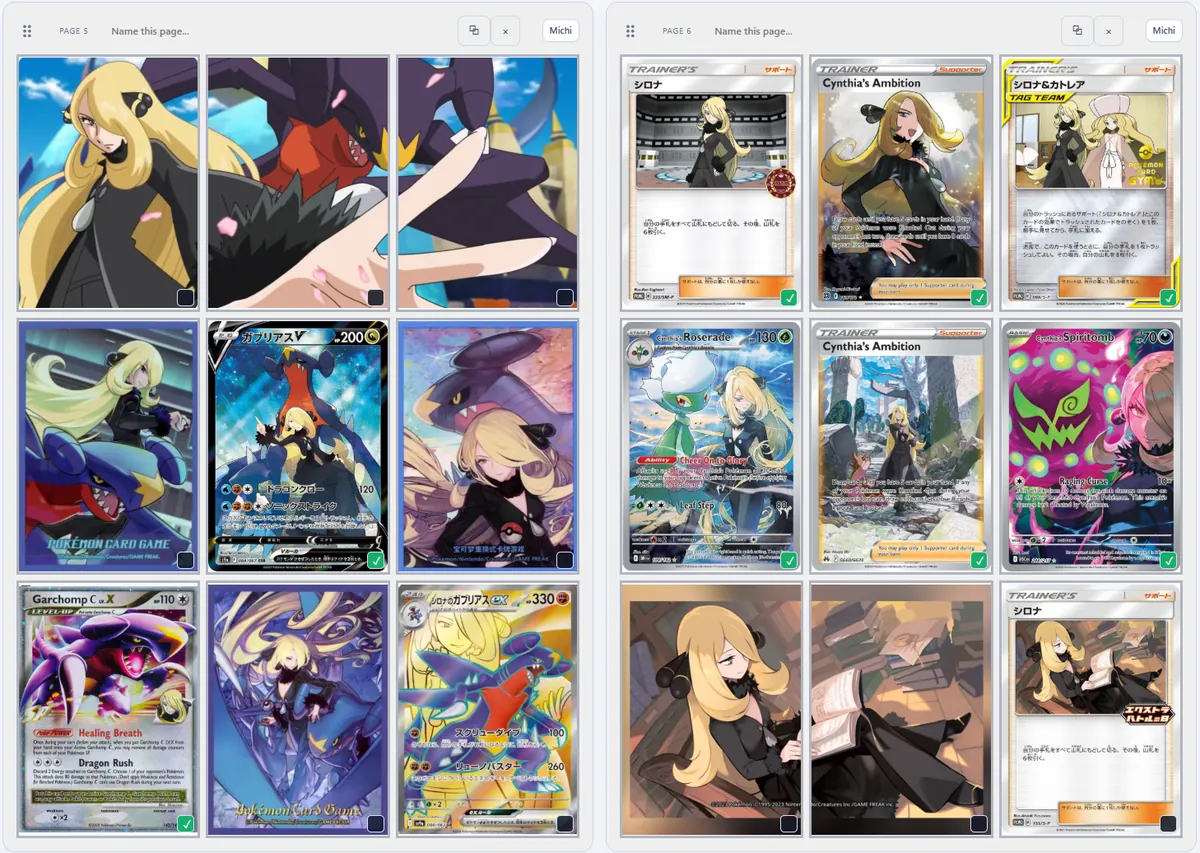
What you need
- An image you have permission to print. See where to find artwork.
- A printer and matte cardstock (regular paper works for a test).
- A ruler to measure your pockets and check the print size.
- Scissors or a paper trimmer. A trimmer makes straight edges easy.
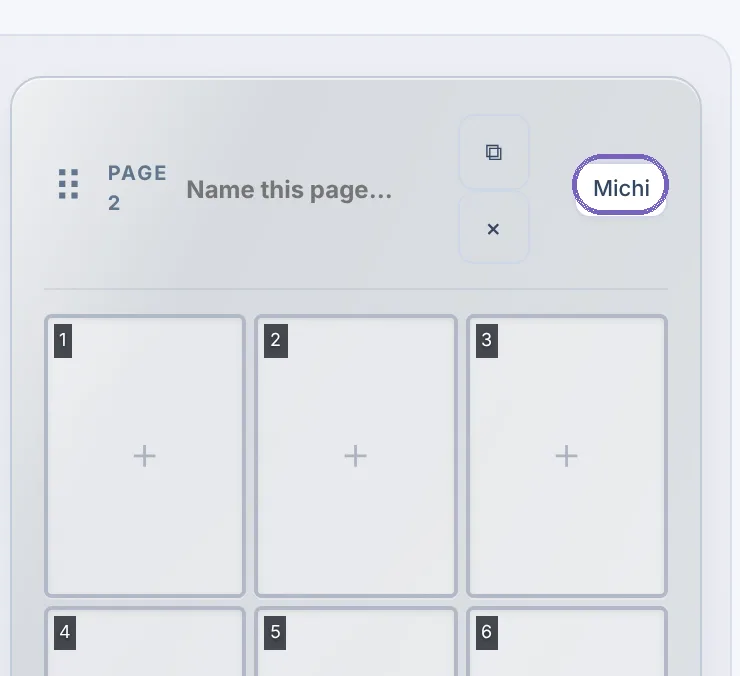
1 Open Michi Mode
Go to the Binder editor and click Michi at the top of the page you want to decorate. You can also open it from the sidebar under Binder tools → Artwork & inserts → Michi Mode.
2 Choose your pockets
Click the pockets the artwork should cover. They light up as you select them. One pocket, a row or a whole block all work.
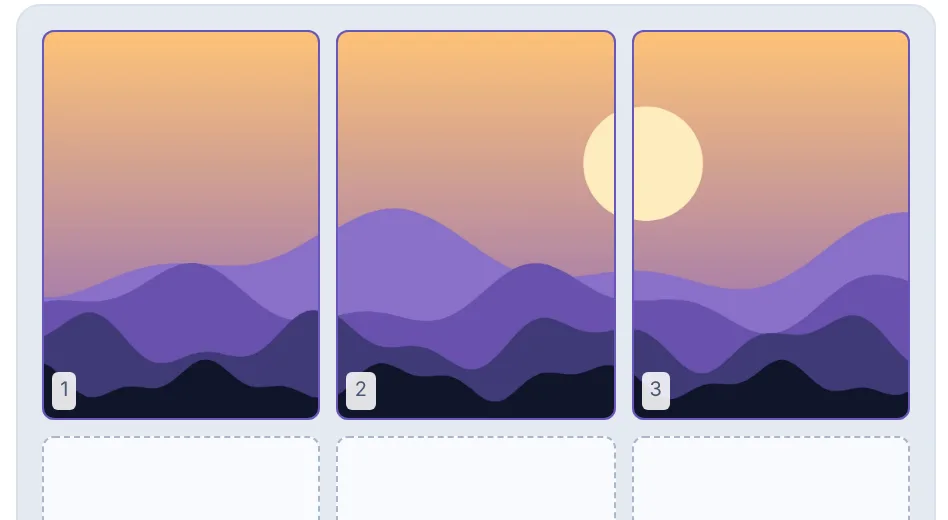
Tip: Want one big panel? Switch Selection mode to Rectangle · merged panel. Leaving a pocket blank on purpose? Use Reserve selected as empty space.
3 Add your artwork
Click Upload custom artwork and pick your image, or paste a link under Or use an image URL and click Load artwork.
Set Image fit to Fill panel (crop edges) so the art fills every pocket edge to edge. Then use Zoom and the position sliders, or drag the preview, until it looks right.
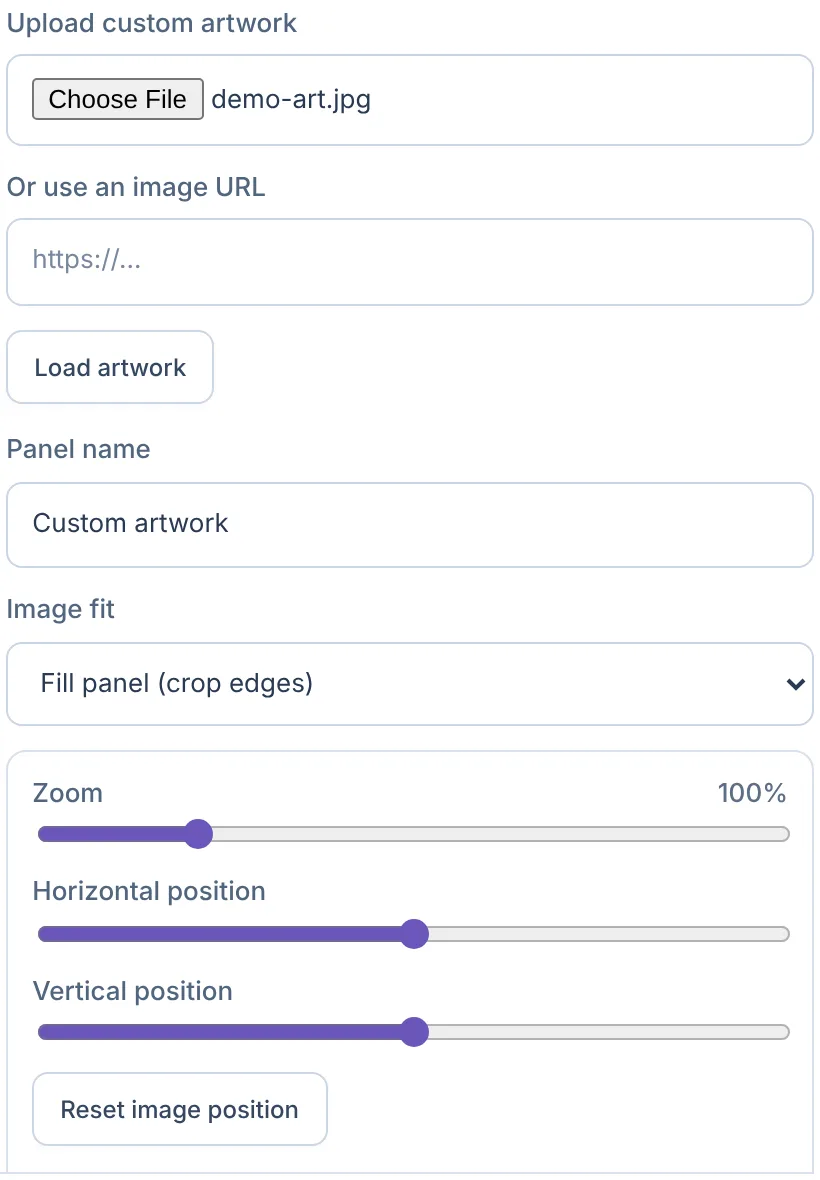
If a link won't load, the website is blocking it. Save the image to your device and upload it instead.
4 Check your pocket size
Open Print measurements. The defaults are 63 × 88 mm pockets with 3 mm gaps, which fit most 9-pocket pages. Binders vary, so measure one pocket and the gap next to it with a ruler and type in your numbers.
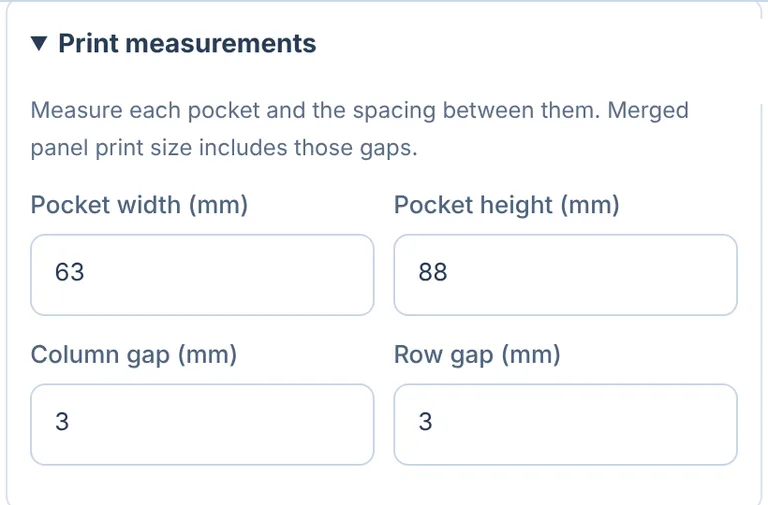
Optional extras: tick Rounded edges under Cut artwork into pocket inserts for softer corners. If your pages have pockets that open toward each other, Pocket openings & connected strips can print those two pockets as one connected strip.
5 Save your inserts
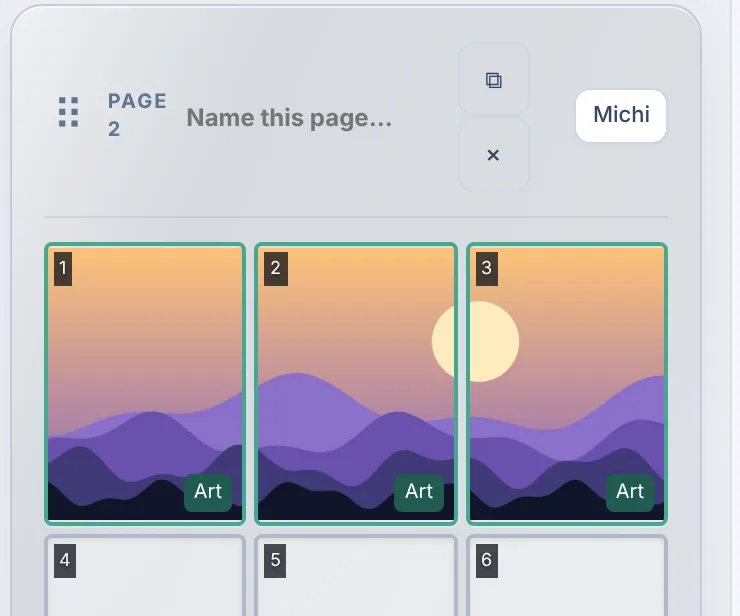
Click Save selected inserts. The pockets now show your artwork with an Art tag, and you can add cards to the rest of the page.
6 Print at actual size
Open Michi Mode again and click Print this page's saved inserts.

In your browser's print window:
- Set the scale to 100% or Actual size, never "Fit to page".
- Turn off headers and footers.
- Load your cardstock and print.
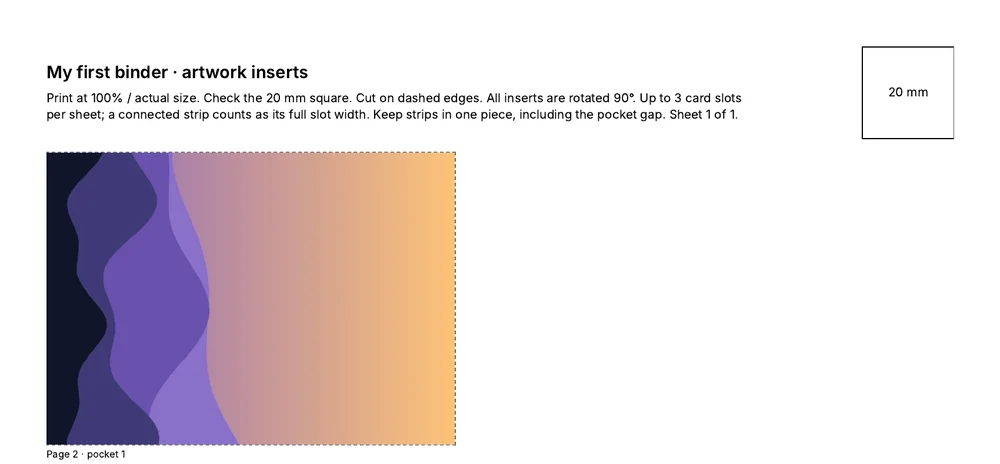
Check before you cut: measure the 20 mm square at the top of the sheet. If it isn't exactly 20 mm, your printer scaled the page. Fix the print setting and print again.
Printing somewhere else? Export this page as PNGs downloads the inserts as image files you can take to a print shop.
7 Cut and slide them in
- Cut on the dashed linesCut just inside each line. A hair small slides in easily; a hair big buckles.
- Keep them in orderEach piece is labeled with its page and pocket, so you always know where it goes.
- Slide into the pocketsInsert each piece into its pocket and check that the picture lines up across the page.
FAQ
What size are binder art inserts?
binder.studio starts with 63 × 88 mm pockets and 3 mm gaps, which fits most 9-pocket pages. Measure your own binder and enter its numbers under Print measurements for a perfect fit.
Why does my printed insert look too small or too big?
Your printer scaled the page. Print again at 100% or Actual size, and check that the 20 mm square on the sheet measures exactly 20 mm.
What paper should I use?
Matte cardstock stays flat in a pocket and avoids glare through the sleeve. Try a test print on regular paper first.
Do I need an account?
No. Michi Mode works in the free workspace, and your inserts are saved on your device.